Computer Systems
Laptop SSD and RAM Upgrade Planning for Longer Service Life
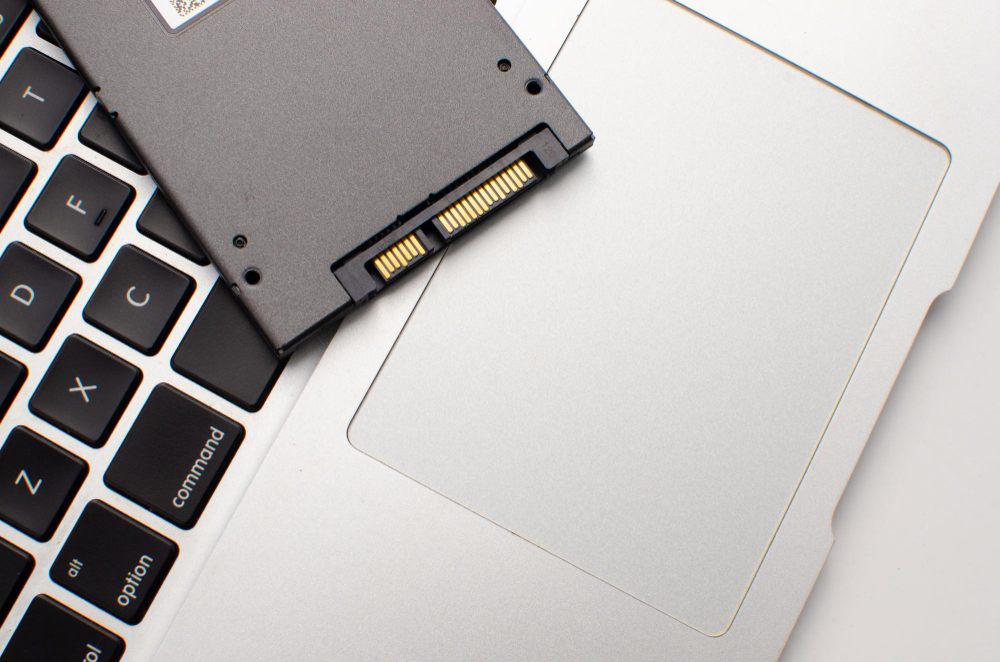
Upgrading a laptop can extend service life when the existing machine is limited by memory or storage rather than by physical damage. Many slow laptops are not failing; they are constrained by low RAM, old storage, full drives, background software, or poor maintenance. A well-planned SSD or RAM upgrade can improve startup, multitasking, application loading, and overall responsiveness. The upgrade must be compatible with the laptop design and user workload.
The Lenovo laptop Malaysia guide explains how to choose a suitable laptop. This article explains how upgrades fit after purchase. Upgrade planning is especially useful for students, SMEs, and office users who want to keep a machine productive without immediately replacing it.
How RAM Upgrades Work
RAM is active workspace for the operating system and applications. When a laptop runs out of RAM, it uses storage as temporary memory, which is slower and causes lag. Adding RAM helps when the user keeps many browser tabs open, runs video calls with documents, works on spreadsheets, uses accounting software, or runs design and development tools. The benefit is strongest when the laptop currently has too little memory for its workload.
Compatibility must be checked. Some laptops have removable memory modules, some have one soldered module plus one slot, and some have fully soldered RAM that cannot be upgraded. Memory type, speed, capacity limit, and dual-channel configuration may also matter. Buying RAM without checking the laptop model can result in parts that cannot be installed.
How SSD Upgrades Work
An SSD stores the operating system, applications, and files. Replacing an old hard drive with an SSD is one of the most noticeable upgrades for older laptops. Upgrading from a small SSD to a larger SSD helps when storage is full or when the user works with large files. SSD type matters: some laptops use 2.5-inch SATA drives, while newer models often use M.2 SATA or M.2 NVMe drives.
SSD upgrading also requires a data workflow. The user must decide whether to clone the existing drive or perform a fresh installation. Cloning keeps existing applications and files but can carry old software problems. Fresh installation is cleaner but requires application setup and file restoration. Important data should be backed up before any upgrade work.
Upgrade Workflow
- Diagnose bottleneck: Confirm whether RAM, storage, software, or heat is causing slowdown.
- Check compatibility: Verify slots, memory type, SSD format, and capacity limits.
- Back up data: Protect documents before opening the machine.
- Install and test: Fit parts carefully, then check boot, detection, and stability.
- Review performance: Confirm that the upgrade solved the actual workload problem.
Practical Use Cases
A student laptop with limited RAM may slow down during online class when browser tabs, video calls, and documents are open together. A RAM upgrade may help if the model supports it. An office laptop with a mechanical hard drive may feel slow when starting Windows or opening accounting software. An SSD upgrade can make the system more responsive. A business laptop with a small SSD may need more capacity for local files, email archives, or application data.
Upgrades do not solve every problem. A laptop with a damaged motherboard, poor screen, failing battery, broken hinge, or unsupported operating system may not be worth upgrading. A gaming laptop limited by graphics hardware cannot become a high-end gaming machine through RAM or SSD alone. Upgrades should be compared with replacement cost.
Maintenance After Upgrade
After upgrading, users should monitor storage space, apply updates, keep backups, and avoid installing unnecessary startup software. SSDs should have free space available for performance and wear management. RAM upgrades should be tested for stability. If the laptop was opened, cooling vents and fans can also be cleaned during service.
A good upgrade is not just hardware replacement. It is diagnosis, compatibility check, data protection, installation, and validation. When done correctly, SSD and RAM upgrades can make a practical laptop remain useful for several more years. Upgrade decisions should still be compared with replacement options in the broader Lenovo laptop Malaysia guide.
When Replacement Is Better
Upgrade is not always the economical choice. If the screen, hinge, battery, motherboard, and cooling system are already weak, adding RAM or SSD may only improve one part of a failing system. Replacement becomes more practical when repair cost approaches the value of a newer laptop with warranty, better battery life, and supported software, and cleaner long-term service options.
Technical FAQ
Will adding RAM always make a laptop faster?
No. RAM helps when memory is the bottleneck. If the laptop is slow because of heat, failing storage, software issues, or an old processor, RAM alone may not solve the problem.
Is SSD upgrade worth it for old laptops?
Often yes, especially when replacing a mechanical hard drive. The laptop must still be physically healthy and compatible with the SSD type.
Can all laptops be upgraded?
No. Many thin laptops have soldered RAM or limited storage access. Check model specifications before buying upgrade parts.
Should data be backed up before upgrade?
Yes. Storage work always carries risk. Important files should be backed up before cloning, replacing, or reinstalling drives.