Computer Systems
Acer Laptop Battery, SSD, RAM and Cooling Maintenance
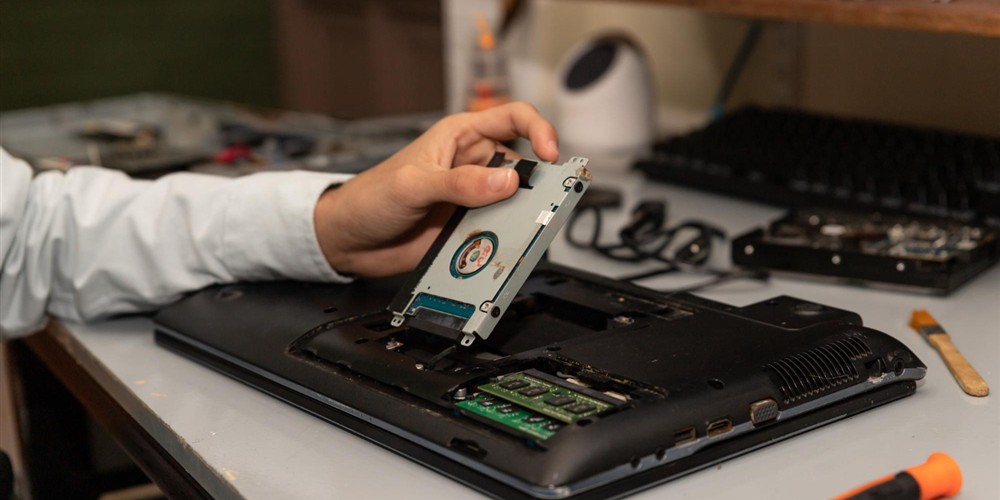
Laptop maintenance is a sequence of diagnosis, compatibility checking, service work and validation. Replacing a component without identifying the actual bottleneck can waste money or introduce new faults. Slow startup may come from storage, but poor responsiveness can also result from insufficient RAM, unwanted background software, overheating or a damaged operating system.
The first task is to define the symptom. Record when it appears, which applications are running, whether the laptop is on battery or AC power and whether temperature or fan noise changes. The broader Acer laptop Malaysia guide helps determine whether the machine still fits the workload. This page focuses on keeping a suitable unit reliable and deciding when an upgrade is technically justified.
Battery Health Is More Than Runtime
A lithium-ion battery loses capacity through age, charge cycles, heat and operating conditions. Reduced runtime is the most visible result, but swelling is more serious. A swollen battery can distort the chassis, lift the touchpad or place pressure on internal components. Stop normal use and arrange qualified service if physical expansion is suspected.
Compare current full-charge capacity with design capacity where diagnostic tools make this available. Also observe real behavior: unexpected shutdown, rapid percentage changes and failure to charge can indicate battery or power-system issues. Use a compatible charger with the correct output. An under-rated adapter may charge slowly or fail to support performance load.
Maintenance Decision Inputs
- Diagnosis: Link the symptom to storage, memory, software, battery, cooling or power before replacing parts.
- Compatibility: Verify exact model code, interface, physical size, supported capacity and firmware requirements.
- Data protection: Back up files and confirm recovery access before storage or operating-system work.
- Service method: Use proper tools, disconnect power and follow model-specific documentation.
- Validation: Test charging, storage, memory, temperature, ports and normal applications after service.
When an SSD Upgrade Helps
An SSD upgrade can improve startup, application loading and file operations or provide more space. Determine whether the laptop uses a 2.5-inch SATA drive, an M.2 SATA device or an NVMe drive; connectors that look similar are not always electrically compatible. Check supported physical length, mounting hardware and whether a second storage slot exists.
Before replacement, back up important data and choose between cloning and a clean operating-system installation. Cloning preserves the existing setup but can carry old software problems into the new drive. A clean installation requires application and account preparation but produces a controlled starting point. After installation, verify capacity, health, activation, updates and file recovery.
RAM Capacity and Configuration
Insufficient RAM becomes visible when applications pause as the operating system repeatedly moves data to storage. Measure memory use during the real workload before upgrading. Check whether memory is fully soldered, partly soldered with one socket or installed in replaceable modules. Confirm generation, supported capacity and module arrangement using the exact model documentation.
More RAM does not correct an overheating processor, failing SSD or software conflict. It is valuable when memory pressure is the verified limitation. After installation, confirm the full capacity is recognised and run the normal application set long enough to expose instability.
Cooling and Cleaning
Cooling performance depends on open vents, working fans, clean fin stacks and sound thermal contact. Use the laptop on a firm surface and keep intake and exhaust areas clear. External dust can be removed carefully, but internal fan or thermal-interface service requires correct disassembly. Forcing air into a fan at excessive speed or using unsuitable liquids can damage components.
Watch for a change in fan sound, repeated thermal throttling, high surface temperature or shutdown under load. Gaming models should be assessed during sustained graphics work, while office laptops can be tested with the normal browser, meeting and document workflow. Temperature readings should be interpreted with the specific processor and firmware limits rather than one universal target.
Software, Updates and Storage Discipline
Keep the operating system, firmware and required drivers supported and current through appropriate sources. Remove unused startup applications that consume memory and processor time. Maintain enough free storage for updates and temporary files. Backups should be tested; a backup that has never been restored is only an assumption.
For business machines, record service dates, parts fitted and battery or SSD health. This history helps distinguish a one-time repair from repeated decline. Before resale or reassignment, remove data through an approved process and confirm that activation and user accounts are ready for the next owner.
Upgrade or Replace?
An upgrade makes sense when the chassis, display, motherboard, ports and cooling system remain sound and one replaceable component limits an otherwise suitable machine. Replacement is usually more practical when several expensive faults overlap, required software is no longer supported or the laptop cannot meet the workload even after feasible upgrades.
Calculate the combined cost of battery, storage, memory, labour and downtime. Compare it with a replacement that includes suitable performance and warranty. For a used unit at the start of ownership, follow the used Acer laptop inspection workflow before committing to upgrades.
Good maintenance does not aim to keep every laptop indefinitely. It provides evidence for the next decision: continue service, upgrade a verified bottleneck, repair a defined fault or replace the system.
Technical FAQ
Will adding RAM always make an Acer laptop faster?
No. It helps when memory pressure is the bottleneck. It will not fix weak cooling, a failing drive, software problems or a processor that is unsuitable for the workload.
Can any M.2 SSD be installed?
No. M.2 devices vary by interface, keying, length and support. Verify whether the exact model accepts SATA or NVMe and what physical sizes and capacities are supported.
What are signs of a swollen battery?
Panel separation, a raised touchpad, distorted keyboard area or difficulty closing the chassis can indicate swelling. Stop normal use and obtain qualified service.
When is replacement better than upgrading?
Replacement is often better when multiple major parts are weak, software support has ended or upgrade and repair cost approaches a more suitable supported laptop.